
Docker Installation
Get DataBuff running in 5 minutes — platform, storage, and ingest in one command.
1. Prerequisites
- Docker
- Docker Compose
- Recommended: 8C16G (8 CPU cores / 16 GB RAM)
2. Install the Platform
Online Install
Run the command when your machine can reach the image registry; the script pulls images and deploys automatically:
curl -fsSL https://databuff.ai/databuff/ai-apm-install.sh | bashAfter installation, the terminal prints the Web UI URL, credentials, and OTLP endpoint. Defaults:
| Purpose | Address |
|---|---|
| Web UI | http://<host-ip>:27403 |
| Default login | admin / Databuff@123 |
| OTLP gRPC | <host-ip>:4317 |
| OTLP HTTP | http://<host-ip>:4318 |
To connect your own apps, see OpenTelemetry OTLP Ingestion; for zero-instrumentation collection see eBPF Ingestion, for entry Nginx see Nginx Ingestion.
Install a specific version:
curl -fsSL https://databuff.ai/databuff/ai-apm-install.sh | bash -s -- --version 0.1.10
# or
APM_VERSION=0.1.10 curl -fsSL https://databuff.ai/databuff/ai-apm-install.sh | bash
Offline Install
When the registry is unreachable, download the bundle for your architecture and install on the target machine. You can also pick a version on the install page under Docker → Offline Install.
tar -zxvf databuff-ai-apm-offline-<version>-<arch>.tar.gz
cd databuff-ai-apm-offline-<version>-<arch>

# Install platform
sudo ./install.sh
See Offline Installation for details.
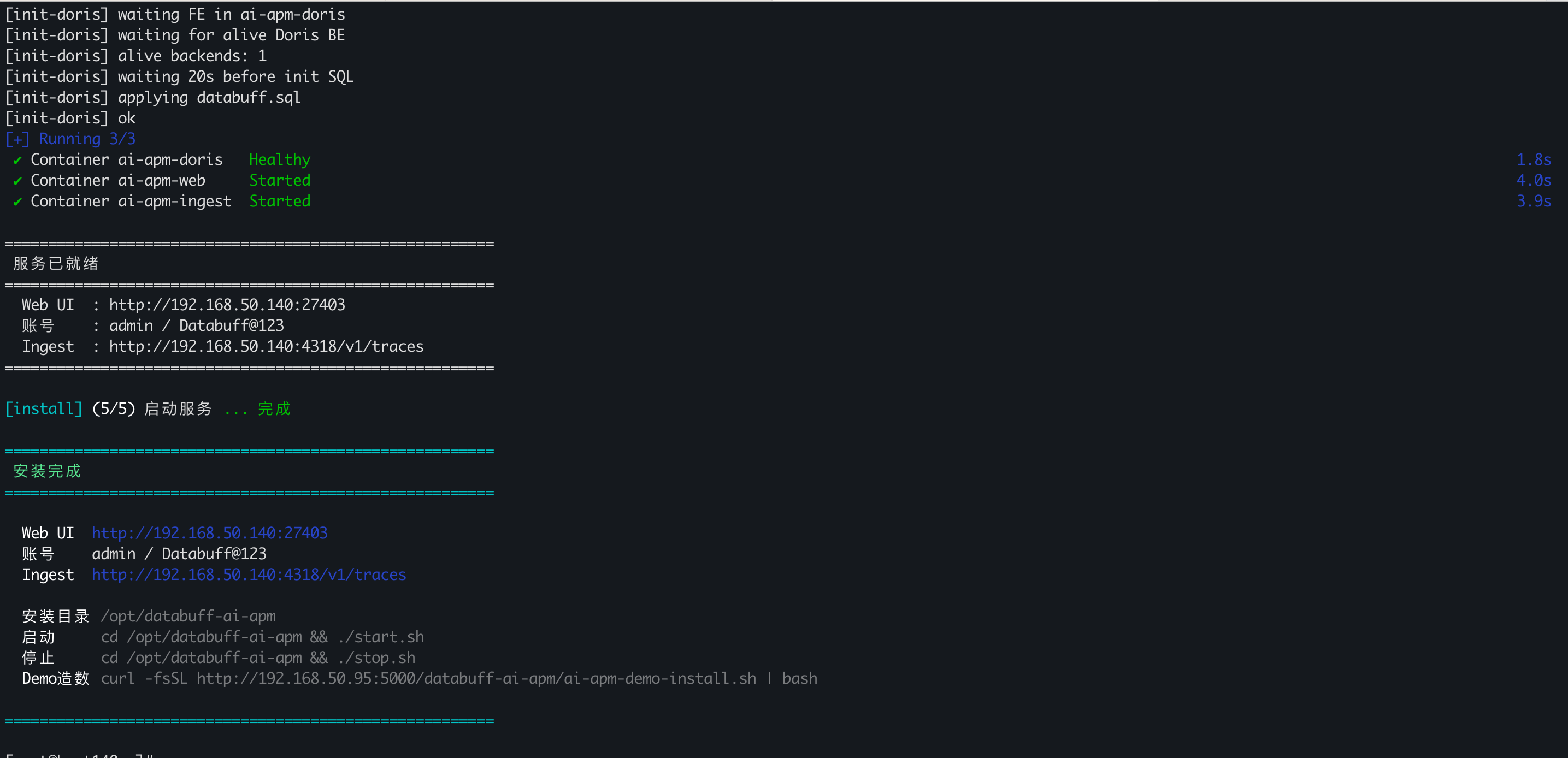
Common commands:
cd /opt/databuff-ai-apm
./start.sh
./stop.shOperations: Docker Operations Reference — install directory, start/stop, ports, health checks, logs, upgrade/uninstall. For air-gapped sites see Offline Installation.
3. Install the Demo (Optional)
Let the demo app continuously report traces so you can see call chains and topology in the platform.
curl -fsSL https://databuff.ai/databuff/ai-apm-demo-install.sh | bash4. Post-Install Verification
- Open the Web UI and sign in with the default account
- APM → Service List — confirm demo services have data
- (Optional) Configuration → Model Settings — enter your API key to enable AI:
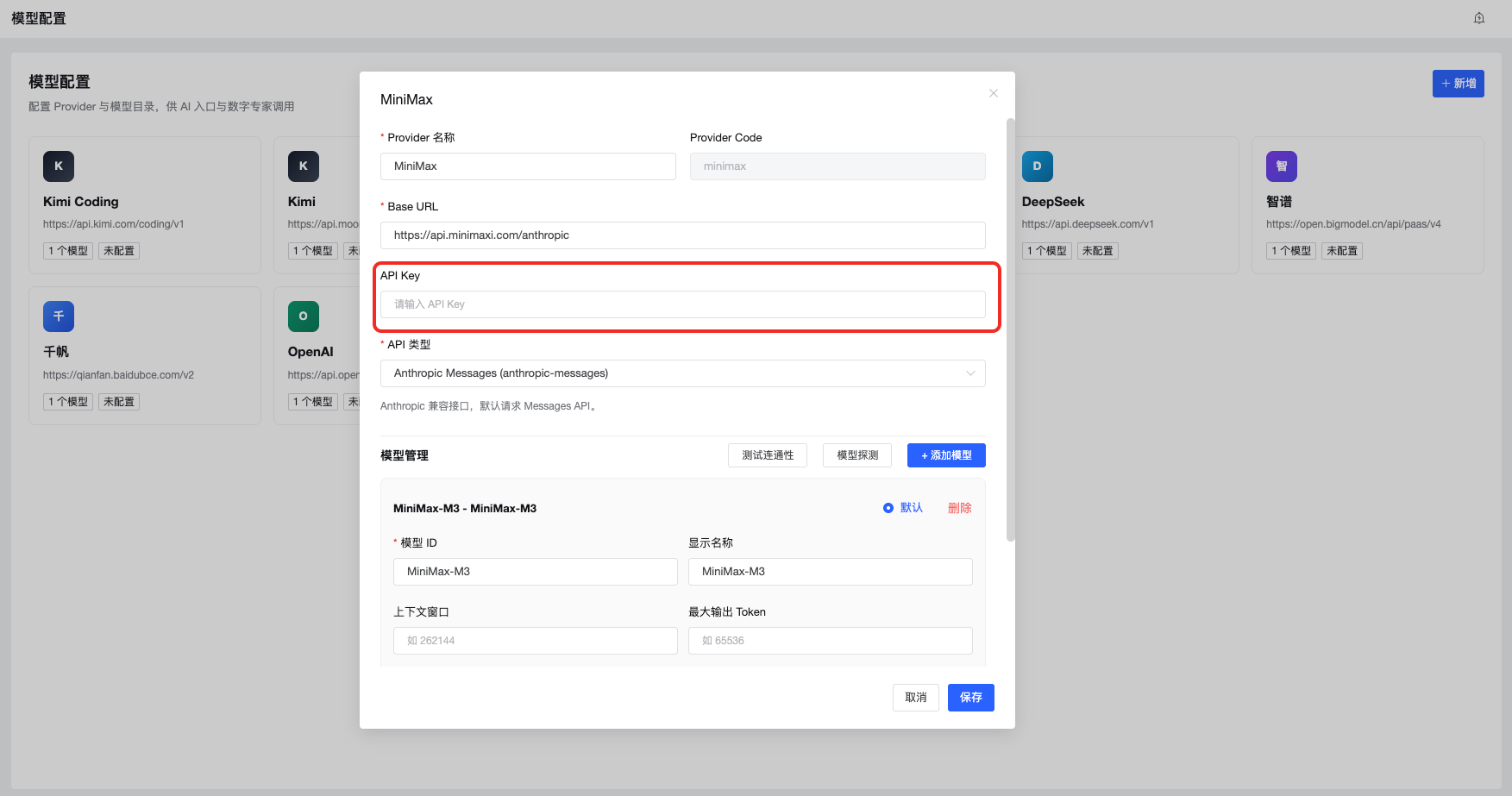
Example AI query: "Query service list for the last hour"